Overview
In the previous post, I set up a GitOps environment by installing ArgoCD. This post covers how I installed and configured the Longhorn distributed storage system in my homelab Kubernetes cluster, along with what I learned from comparing storage options and why persistent storage turned out to be necessary.

Storage Challenges in a Homelab Environment
One of the biggest challenges when building a homelab Kubernetes cluster was configuring storage. Most practical applications such as databases, monitoring tools, and backup systems require persistent storage that maintains data even when pods restart or move to different nodes.
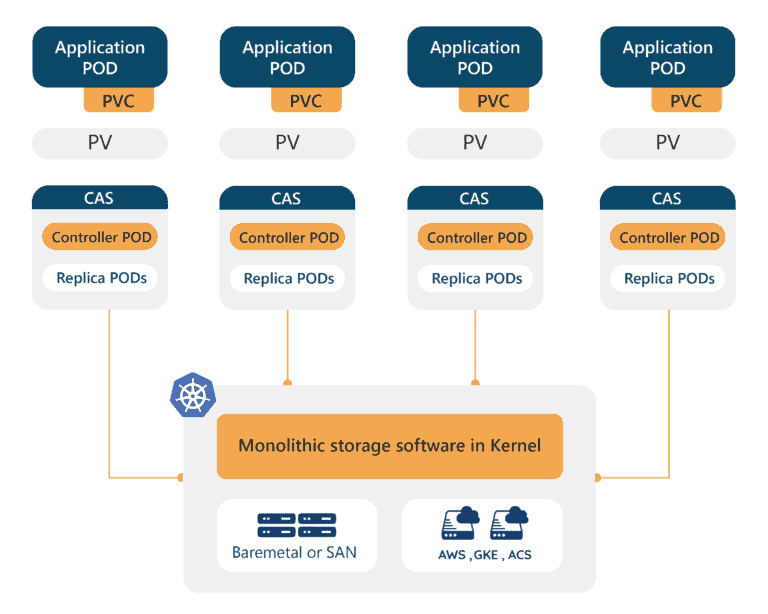
Initially, the following approaches were attempted:
Local Storage: The simplest approach using local disks on each node directly, but when pods were rescheduled to different nodes, data stored on the original node became inaccessible. The critical drawback is that data recovery is impossible when a node fails.
NFS (Network File System): Configuring a separate NAS device as an NFS server for shared storage across all nodes allowed pods to access the same data regardless of which node they ran on. However, the NFS server became a single point of failure, making all storage inaccessible when the server failed. I also ran into stability issues with NFS file locking in Kubernetes.
Rook-Ceph: Deploying the Kubernetes-native distributed storage solution Ceph through the Rook operator provides powerful features and high reliability. However, it requires a minimum of 3 OSD (Object Storage Daemon) nodes and has significant memory and CPU overhead, which felt too heavy for a homelab cluster built with Dell OptiPlex Micro units.
After several rounds of trial and error, Longhorn was chosen. Longhorn is simple to install, has low resource requirements, and still provides enterprise-grade features like distributed replication, snapshots, and backup, making it the most suitable distributed storage system for a homelab environment.
Problems Solved by Longhorn
After adopting Longhorn, the following problems were resolved:
Data Persistence: Volume data is replicated and stored across multiple nodes, so if a specific node fails, data can be read from replicas on other nodes, greatly reducing the risk of data loss. Previously, data stored in local storage could disappear or become inaccessible after node reboots.
Workload Mobility: Even when the Kubernetes scheduler moves pods to different nodes, Longhorn automatically handles making volumes accessible on those nodes, allowing pods to continue accessing the same data.
Backup and Recovery: Through Longhorn’s built-in backup functionality, volume snapshots can be created and backed up to S3-compatible object storage or NFS servers, making it easy to protect important data.
Ease of Management: Through the web UI dashboard provided by Longhorn, volume status, replica distribution, per-node storage usage, and more can be visually monitored and managed, greatly reducing operational burden.
Introduction to Longhorn
What is Longhorn?
Longhorn is a lightweight distributed block storage system for Kubernetes. Rancher Labs started development in 2017 and released it as open source. It is currently managed as a CNCF (Cloud Native Computing Foundation) incubating project. It creates a distributed storage pool using each node’s local disk and provides high availability and data protection by replicating volume data across multiple nodes.
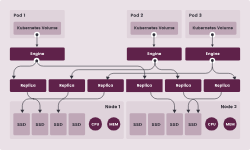
Key features of Longhorn include:
- Distributed Replication: Each volume is replicated and stored across multiple nodes according to the configured replica count (default 3). When a node fails, replicas are automatically reconstructed on other nodes.
- Microservices Architecture: Each volume operates as an independent microservice, so problems with one volume do not affect other volumes.
- Snapshots and Backup: Point-in-time snapshots of volumes can be created and backed up to external storage, facilitating data protection and disaster recovery.
- Intuitive Web UI: Provides a dashboard for visually managing volumes, nodes, and backup status.
- Lightweight Design: Has lower resource requirements compared to Rook-Ceph, making it suitable for homelab or edge environments.
Longhorn Installation Requirements
Before installing Longhorn, I checked that all nodes met the following requirements:
- Supported OS: Supports most Linux distributions including Ubuntu 18.04+, Debian 10+, CentOS 7+, RHEL 7+.
- Container Runtime: Docker or containerd must be installed.
- open-iscsi Package: Longhorn uses iSCSI to attach volumes to nodes, so the open-iscsi package is required.
- NFSv4 Client: Required if using an NFS server as a backup target.
Prerequisites
As a prerequisite, I SSHed into every node and installed the required packages:
sudo apt-get update
sudo apt-get install -y open-iscsi nfs-common
sudo systemctl enable iscsid
sudo systemctl start iscsid
The commands above update the package list, install the iSCSI initiator (open-iscsi) and NFS client (nfs-common), then enable the iSCSI daemon to start automatically at system boot and start it immediately.
After that, I checked that the iSCSI service was actually running on each node:
sudo systemctl status iscsid
On each node, the service showed active (running) like this:
● iscsid.service - iSCSI Initiator Daemon
     Loaded: loaded (/lib/systemd/system/iscsid.service; enabled; vendor preset: enabled)
     Active: active (running) since Tue 2025-02-25 08:30:15 UTC; 5s ago
Installing Longhorn with GitOps
In this series, all Kubernetes resources are managed using GitOps methodology. Longhorn is also configured by defining Helm chart settings in a Git repository and having ArgoCD automatically deploy it. The Git repository used is https://github.com/injunweb/k8s-resource.
1. Add Longhorn Helm Chart Configuration to Git Repository
I added the Longhorn setup to my GitOps repository, starting from this local setup:
git clone https://github.com/injunweb/k8s-resource.git
cd k8s-resource
mkdir -p apps/longhorn-system
cd apps/longhorn-system
The Chart.yaml file looked like this:
apiVersion: v2
name: longhorn
description: Longhorn Distributed Block Storage for Kubernetes
type: application
version: 1.0.0
appVersion: 1.4.0
dependencies:
    - name: longhorn
      version: 1.4.0
      repository: https://charts.longhorn.io
This configuration pulls and installs version 1.4.0 of the chart from the official Longhorn Helm repository (https://charts.longhorn.io).
I used the following values.yaml for Longhorn:
longhorn:
    defaultSettings:
        defaultDataPath: /var/lib/longhorn
        defaultDataLocality: best-effort
        replicaAutoBalance: best-effort

    preUpgradeChecker:
        jobEnabled: false
The meaning of each configuration item is as follows:
- defaultDataPath: The directory path where Longhorn stores volume data on each node. Using the default
/var/lib/longhornstores data on the system disk. - defaultDataLocality: When set to
best-effort, Longhorn places volume replicas on the node where pods are running when possible, improving performance through local disk access. - replicaAutoBalance: When set to
best-effort, replicas are automatically redistributed across nodes when nodes are added or removed, maintaining balanced storage usage. - preUpgradeChecker.jobEnabled: Disables the pre-upgrade check Job for Longhorn upgrades. In ArgoCD environments, this Job can cause synchronization issues, so it should be set to
false.
Once those files were in place, I committed and pushed them:
git add .
git commit -m "Add Longhorn distributed storage configuration"
git push
2. Automatic Deployment via ApplicationSet
ArgoCD’s ApplicationSet controller monitors the apps/ directory in the Git repository and automatically creates and deploys applications when new subdirectories are detected.

The automatic deployment process of ApplicationSet is as follows:
- Directory Detection: The ApplicationSet controller periodically scans the
apps/directory of the Git repository (https://github.com/injunweb/k8s-resource) and detects the newlonghorn-systemdirectory. - Application Creation: According to the template, an ArgoCD Application resource named
longhorn-system(matching the directory name) is automatically created. - Namespace Creation: A namespace with the same name as the application,
longhorn-system, is created in the cluster. - Helm Chart Deployment: ArgoCD parses the Helm chart in that directory, resolves dependencies, and deploys resources to the cluster.
After the push, I checked that ApplicationSet had created the application:
kubectl get applications -n argocd
In the output, the longhorn-system application appeared as created and synchronized:
NAME              SYNC STATUS   HEALTH STATUS
longhorn-system   Synced        Healthy
The newly created longhorn-system application’s details and deployed resources can also be visually confirmed in the ArgoCD web UI.
3. Verify Longhorn Deployment Status
Once ArgoCD synced, I checked that the Longhorn components were actually up:
kubectl -n longhorn-system get pods
At that point, all pods were in Running status:
NAME                                                READY   STATUS    RESTARTS   AGE
csi-attacher-77d87d4c79-bkw5r                       1/1     Running   0          5m
csi-attacher-77d87d4c79-d42zq                       1/1     Running   0          5m
csi-attacher-77d87d4c79-zlszr                       1/1     Running   0          5m
csi-provisioner-5c9dfb6446-7xk2n                    1/1     Running   0          5m
csi-provisioner-5c9dfb6446-l8xz4                    1/1     Running   0          5m
csi-provisioner-5c9dfb6446-w9vmc                    1/1     Running   0          5m
csi-resizer-6f8d9f7f9c-2jk8p                        1/1     Running   0          5m
csi-snapshotter-86bc9b7f6c-5xz8k                    1/1     Running   0          5m
engine-image-ei-68f17757-2j8k5                      1/1     Running   0          5m
instance-manager-e-xxxxx                            1/1     Running   0          5m
instance-manager-r-xxxxx                            1/1     Running   0          5m
longhorn-csi-plugin-xxxxx                           2/2     Running   0          5m
longhorn-driver-deployer-xxxxx                      1/1     Running   0          5m
longhorn-manager-xxxxx                              1/1     Running   0          5m
longhorn-ui-xxxxx                                   1/1     Running   0          5m
I also checked that Longhorn had become the default StorageClass:
kubectl get storageclass
NAME                 PROVISIONER          RECLAIMPOLICY   VOLUMEBINDINGMODE   ALLOWVOLUMEEXPANSION   AGE
longhorn (default)   driver.longhorn.io   Delete          Immediate           true                   5m
Accessing the Longhorn Web UI
To inspect it more easily, I also opened the Longhorn web UI through port forwarding:
kubectl port-forward -n longhorn-system svc/longhorn-frontend 8080:80
This command forwards port 8080 on the local system to port 80 of the Longhorn frontend service. Accessing http://localhost:8080 in a web browser displays the Longhorn dashboard.
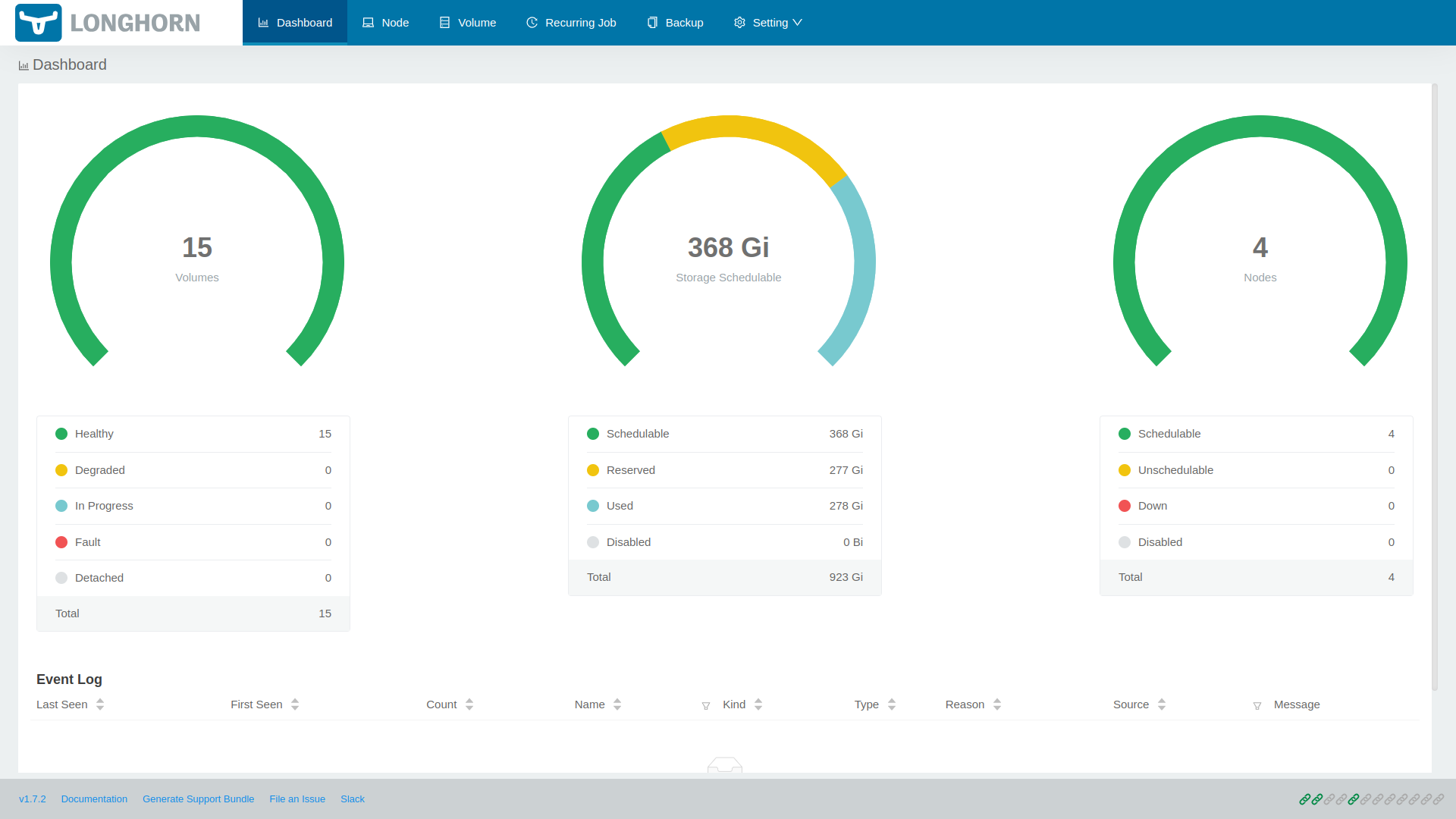
From the dashboard, you can view and manage the overall cluster storage capacity and usage, each volume’s status and replica distribution, per-node storage status, scheduled backup jobs, and more at a glance.
Testing
To make sure Longhorn was doing more than just showing green pods, I created a test PVC and Pod and checked that provisioning and mounting worked end to end.
apiVersion: v1
kind: PersistentVolumeClaim
metadata:
    name: longhorn-test-pvc
spec:
    accessModes:
        - ReadWriteOnce
    storageClassName: longhorn
    resources:
        requests:
            storage: 1Gi
---
apiVersion: v1
kind: Pod
metadata:
    name: volume-test
spec:
    containers:
        - name: volume-test
          image: nginx:alpine
          volumeMounts:
              - name: test-volume
                mountPath: /data
    volumes:
        - name: test-volume
          persistentVolumeClaim:
              claimName: longhorn-test-pvc
This manifest defines two resources:
- PersistentVolumeClaim: Requests a 1GB read/write volume using the
longhornStorageClass. - Pod: Runs an nginx container and mounts the requested PVC at the
/datapath.
I applied the manifest and checked the claim status with:
kubectl apply -f test.yaml
kubectl get pvc longhorn-test-pvc
If the PVC status shows Bound, Longhorn has successfully provisioned the volume:
NAME                STATUS   VOLUME                                     CAPACITY   ACCESS MODES   STORAGECLASS   AGE
longhorn-test-pvc   Bound    pvc-xxxxxxxx-xxxx-xxxx-xxxx-xxxxxxxxxxxx   1Gi        RWO            longhorn       30s
Then I checked inside the Pod that the volume was really mounted:
kubectl exec -it volume-test -- df -h /data
If mounted successfully, the /data directory will be displayed as a 1GB volume:
Filesystem                Size      Used Available Use% Mounted on
/dev/longhorn/pvc-xxx     976.0M    2.5M    907.4M   0% /data
After confirming everything worked, I cleaned up the test resources:
kubectl delete -f test.yaml
Conclusion
This post covered how I added Longhorn distributed storage to the homelab Kubernetes cluster. In my environment, it struck a good balance between features and operational overhead: much more practical than local storage or NFS, but still lighter than Rook-Ceph.
The next post covers installing the Traefik ingress controller and configuring access to internal services.