Overview
This series is a place to record the parts of my homelab that feel worth writing down. Rather than treating it as a step-by-step guide, I want it to focus more on what I built and why I chose to put it together that way.
This first post covers the hardware I used and the initial setup for a Mini PC-based Kubernetes cluster.
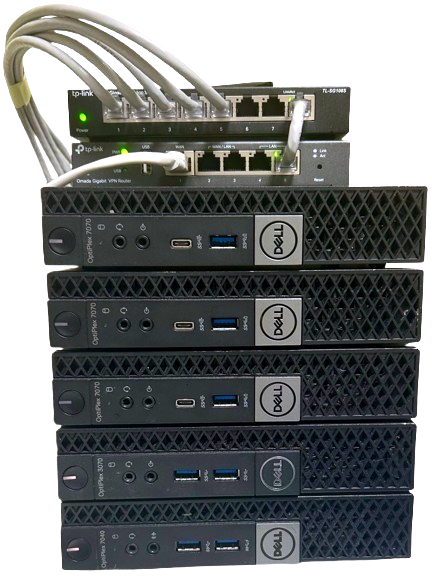
The hardware setup uses five Dell OptiPlex Micro units as cluster nodes, with a TP-Link router and switch handling the network. The Dell OptiPlex Micro is a low-power mini PC that can be purchased affordably on the used market. The models used here are equipped with 9th-generation i5 CPUs, 16GB of memory, and 256GB SSDs, which is sufficient for handling Kubernetes workloads.
What is a Homelab?
A homelab is a personal server environment built at home, typically set up by IT professionals or developers for learning purposes or personal projects. It involves configuring servers, network equipment, and storage to create an environment similar to an actual data center, offering the advantage of experimenting with and experiencing various technologies without cloud costs.
OS Installation
I started by removing Windows 10 from each Dell OptiPlex Micro node and installing Ubuntu Server 24.04 LTS instead. I chose Ubuntu Server because the lack of a GUI keeps resource usage low and fits a Kubernetes environment better. The LTS release was also easier to live with for a long-running setup because it is supported through 2029.
For the installation itself, I downloaded the Ubuntu ISO, created a bootable USB with Rufus or balenaEtcher, and selected USB boot in the BIOS on each node.
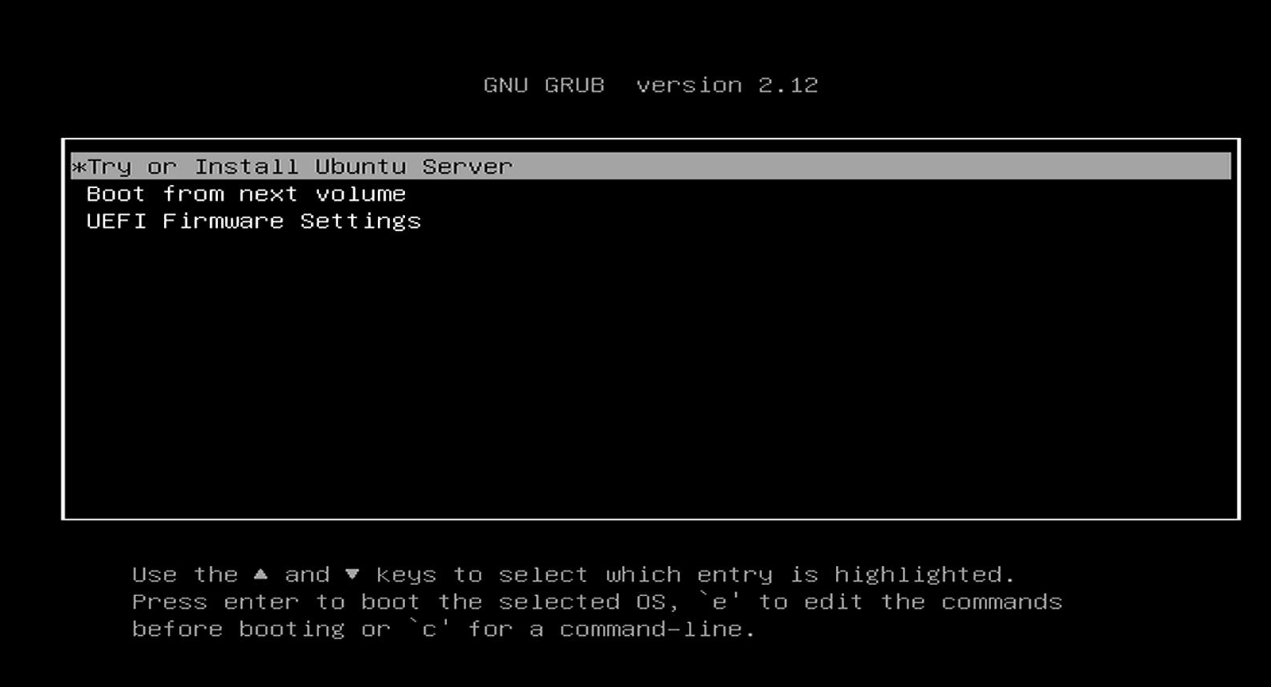
After booting, I selected “Try or Install Ubuntu” and mostly followed the default options through the language, keyboard, and network screens until I reached the server configuration screen shown below.
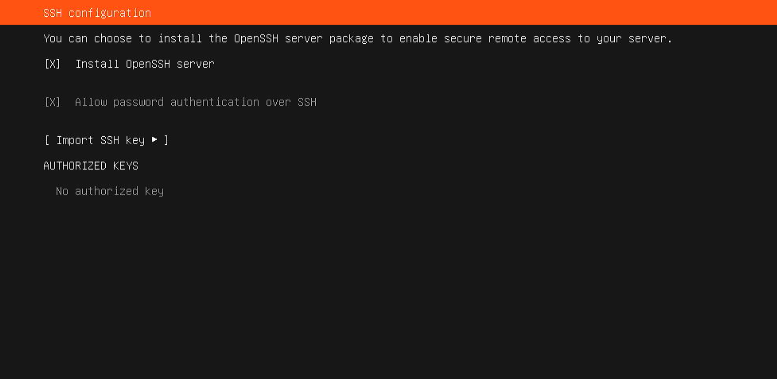
On this screen, I enabled the “Install OpenSSH server” option. Since this homelab runs headless most of the time, SSH was effectively the main way I planned to access and manage the nodes.
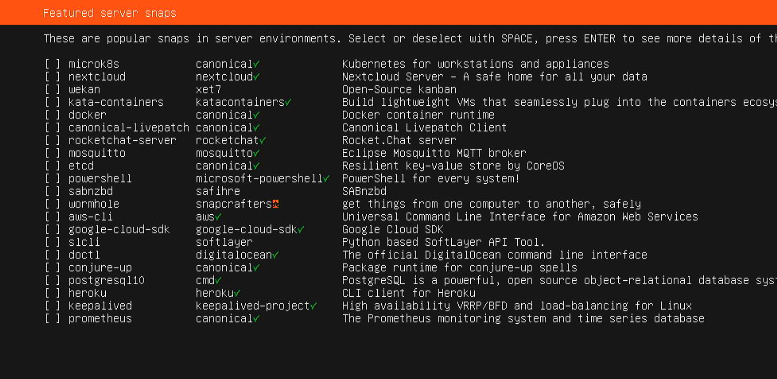
On the additional package screen, I left everything unselected. Packages like Docker or PostgreSQL were going to be handled separately during the Kubernetes setup anyway, so preinstalling them here did not help much.
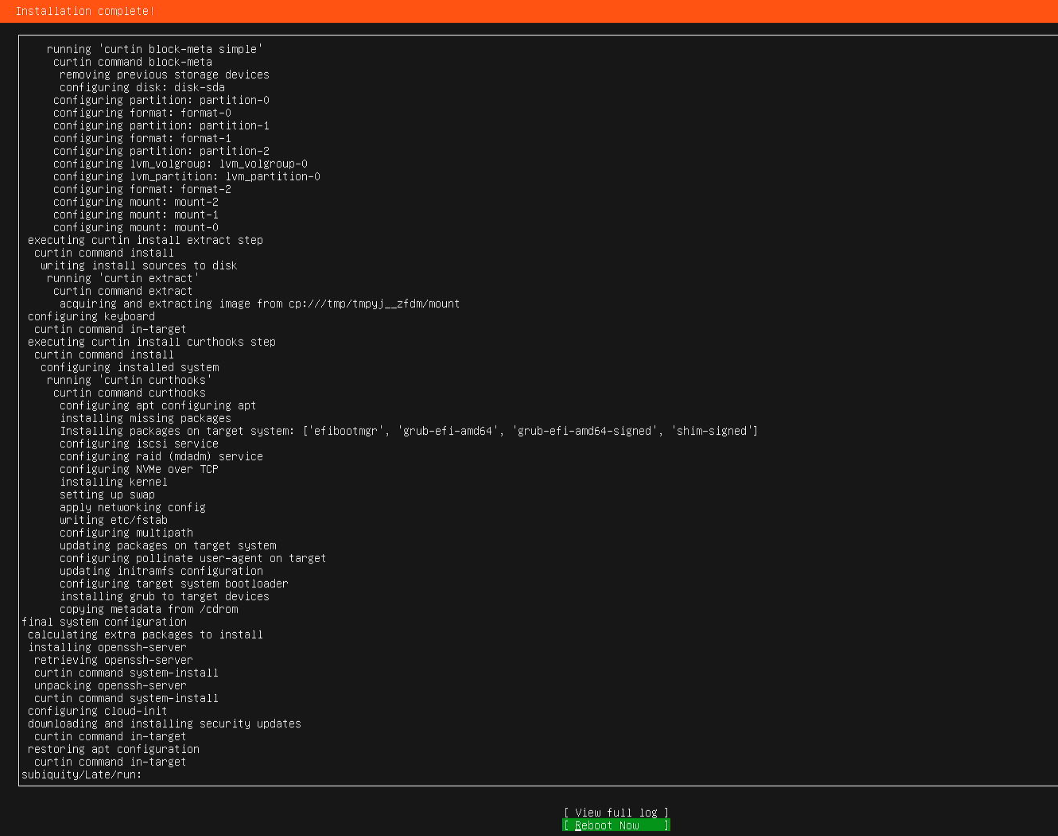
When the installation finished, I selected “Reboot Now” and repeated the same process across all nodes.
Network Configuration
Once the operating system was installed, I moved on to the network. In this cluster, stable inter-node communication mattered enough that I chose static IPs instead of leaving everything on DHCP.
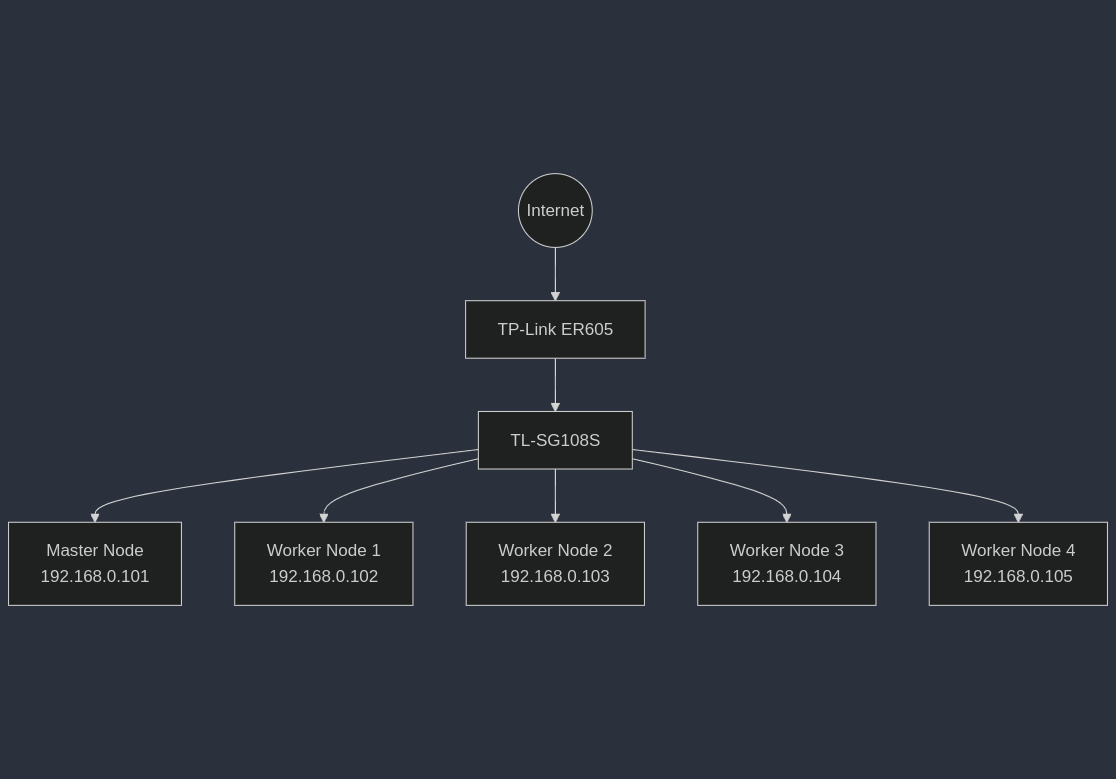
The diagram above shows the configured network architecture, with one master node and four worker nodes connected through a switch and communicating with the external network through a router. Each node is assigned a static IP in the 192.168.0.x range.
I covered the actual static IP setup in the Ubuntu 24.04 LTS Static IP Configuration post. In practice, using static IPs made the cluster much easier to manage because addresses would not shift when the router rebooted or DHCP leases changed.
Kubernetes Installation
With Ubuntu installed and the network configured, the next step was installing Kubernetes. I first installed the container runtime, containerd, along with the core Kubernetes components kubelet, kubeadm, and kubectl.
Core Kubernetes Components
- kubelet: An agent running on each node that manages containers to ensure they run properly within pods.
- kubeadm: A tool for bootstrapping Kubernetes clusters, responsible for cluster initialization and node joining.
- kubectl: A CLI tool for interacting with the Kubernetes cluster, used for all management tasks.
I ran the following commands on every node, both the master and the workers.
# Update system packages
sudo apt-get update && sudo apt-get upgrade -y
sudo apt-get install -y apt-transport-https ca-certificates curl software-properties-common

# Docker repository setup and containerd installation
sudo apt-get update
sudo apt-get install ca-certificates curl
sudo install -m 0755 -d /etc/apt/keyrings
sudo curl -fsSL https://download.docker.com/linux/ubuntu/gpg -o /etc/apt/keyrings/docker.asc
sudo chmod a+r /etc/apt/keyrings/docker.asc

echo \
"deb [arch=$(dpkg --print-architecture) signed-by=/etc/apt/keyrings/docker.asc] https://download.docker.com/linux/ubuntu \
$(. /etc/os-release && echo "$VERSION_CODENAME") stable" | \
sudo tee /etc/apt/sources.list.d/docker.list > /dev/null

sudo apt-get update
sudo apt-get install docker-ce docker-ce-cli containerd.io

sudo systemctl start docker
sudo systemctl enable docker

# Kubernetes repository setup and installation
echo "deb [signed-by=/etc/apt/keyrings/kubernetes-apt-keyring.gpg] https://pkgs.k8s.io/core:/stable:/v1.30/deb/ /" | sudo tee /etc/apt/sources.list.d/kubernetes.list
curl -fsSL https://pkgs.k8s.io/core:/stable:/v1.30/deb/Release.key | sudo gpg --dearmor -o /etc/apt/keyrings/kubernetes-apt-keyring.gpg

sudo apt-get update
sudo apt-get install -y kubelet kubeadm kubectl
sudo apt-mark hold kubelet kubeadm kubectl

# Disable swap
sudo swapoff -a
sudo sed -i '/swap/d' /etc/fstab

# Load kernel modules and configure networking
cat <<EOF | sudo tee /etc/modules-load.d/k8s.conf
overlay
br_netfilter
EOF

sudo modprobe overlay
sudo modprobe br_netfilter

cat <<EOF | sudo tee /etc/sysctl.d/k8s.conf
net.bridge.bridge-nf-call-iptables  = 1
net.bridge.bridge-nf-call-ip6tables = 1
net.ipv4.ip_forward                 = 1
EOF

sudo sysctl --system

# containerd configuration
sudo mkdir -p /etc/containerd
sudo containerd config default | sudo tee /etc/containerd/config.toml
sudo sed -i 's/SystemdCgroup = false/SystemdCgroup = true/' /etc/containerd/config.toml
sudo systemctl restart containerd

# Pre-download Kubernetes images
sudo kubeadm config images pull
That script handled the following tasks:
- System package update: Updates apt repositories to the latest state and installs essential dependency packages.
- containerd installation: Installs containerd from the official Docker repository. Starting with Kubernetes 1.24, using containerd directly instead of Docker is recommended.
- Kubernetes component installation: Installs kubelet, kubeadm, and kubectl from the official Kubernetes repository and prevents automatic upgrades with the
apt-mark holdcommand. - Swap disable: Kubernetes requires swap to be disabled for memory management. Removing the swap entry from
/etc/fstabmaintains the disabled state after reboot. - Kernel module and network configuration: Loads the overlay and br_netfilter modules and enables IP forwarding to allow network communication between pods.
- containerd configuration optimization: Enables SystemdCgroup so that kubelet and containerd use the same cgroup driver.
After the common packages were installed everywhere, I initialized the cluster on the master node with the following command.
sudo kubeadm init --pod-network-cidr=10.244.0.0/16
The --pod-network-cidr option specifies the IP address range to use for the pod network. This value must match the CNI (Container Network Interface) plugin configuration. Here, 10.244.0.0/16 is used to match the default Calico network plugin configuration.
When initialization completes successfully, the following message will be displayed.
Your Kubernetes control-plane has initialized successfully!

To start using your cluster, you need to run the following as a regular user:

  mkdir -p $HOME/.kube
  sudo cp -i /etc/kubernetes/admin.conf $HOME/.kube/config
  sudo chown $(id -u):$(id -g) $HOME/.kube/config

You should now deploy a pod network to the cluster.
Run "kubectl apply -f [podnetwork].yaml" with one of the options listed at:
  https://kubernetes.io/docs/concepts/cluster-administration/addons/

Then you can join any number of worker nodes by running the following on each as root:

kubeadm join <your-master-ip>:6443 --token <token> --discovery-token-ca-cert-hash sha256:<hash>
The kubeadm join command shown at the end of the output is what I later used to attach the worker nodes. Since the token expires after 24 hours, I saved it right away.
Right after initialization, I also configured kubeconfig so I could use kubectl from the master node without sudo.
mkdir -p $HOME/.kube
sudo cp -i /etc/kubernetes/admin.conf $HOME/.kube/config
sudo chown $(id -u):$(id -g) $HOME/.kube/config
The commands above copy the Kubernetes administrator configuration file to the current user’s home directory and set permissions so I could run kubectl without sudo.
CNI Plugin Installation
At that point, the cluster was initialized, but pods still could not communicate across nodes. I needed to install a CNI (Container Network Interface) plugin to configure the pod network and enable inter-node communication.
What is Calico?
Calico is one of the most widely used CNI plugins in Kubernetes environments. Developed by Tigera and released as open source, it provides high-performance network routing using BGP (Border Gateway Protocol) and powerful network policy features that allow fine-grained control of inter-pod traffic.
For the CNI, I chose Calico and installed it from the master node with the following command.
kubectl apply -f https://raw.githubusercontent.com/projectcalico/calico/v3.26.1/manifests/calico.yaml
This command installs all essential Calico components (calico-node, calico-kube-controllers, etc.) in the kube-system namespace. After installation, calico-node pods run on each node to handle inter-node network communication.
Once Calico was in place, I ran the saved kubeadm join command on each worker node.
sudo kubeadm join <master-ip>:6443 --token <token> --discovery-token-ca-cert-hash sha256:<hash>
After that, I checked from the master node that all workers had joined properly.
kubectl get nodes
If all nodes are displayed in Ready status, the cluster has been successfully configured.
Load Balancer Installation
One way to expose services externally in Kubernetes is to use the LoadBalancer type. In cloud environments like AWS or GCP, the cloud provider automatically provisions a load balancer, but in on-premises or homelab environments, a separate load balancer implementation is required.
What is MetalLB?
MetalLB is a load balancer implementation for bare-metal Kubernetes clusters. Development was started by Google’s David Anderson in 2017 and is currently managed as a CNCF sandbox project. It supports Layer 2 mode and BGP mode, enabling LoadBalancer type services to be used in the same way as cloud environments.
For bare-metal load balancing, I installed MetalLB with the following command.
kubectl apply -f https://raw.githubusercontent.com/metallb/metallb/v0.14.9/config/manifests/metallb-native.yaml
This command installs MetalLB’s controller and speaker components in the metallb-system namespace. The controller manages IP address allocation, and the speaker runs on each node to handle network responses for assigned IPs.
When the install finished, I checked the pods with the following command.
kubectl get pods -n metallb-system
One controller pod and a speaker pod on each node should be displayed in Running status.
MetalLB Layer 2 Mode
In this series, MetalLB is used in Layer 2 mode. In this mode, the MetalLB speaker implements load balancer functionality by using ARP (IPv4) or NDP (IPv6) protocols to respond to the assigned virtual IP with its own MAC address.
For example, if MetalLB assigns the virtual IP 192.168.0.200 to a service, another device on the same network may send an ARP request for that address. The MetalLB speaker then responds with the MAC address of the node hosting the service, ensuring that traffic is delivered to the correct node.
I covered ARP and NDP in more detail in the following posts:
- Complete Understanding of How ARP Protocol Works
- Understanding IPv6 NDP (Neighbor Discovery Protocol)
Conclusion
This post covered building a Kubernetes cluster consisting of 5 nodes using Dell OptiPlex Micro units, configuring the pod network with Calico CNI, and setting up a load balancer with MetalLB. A basic Kubernetes environment is now ready, and the foundation has been laid to deploy and operate various workloads on this cluster.
The next post covers installing ArgoCD to manage Kubernetes resources using the GitOps approach.